
cctv to mobile connection: Ultimate Easy in 5 Mins
Why CCTV to Mobile Connection Matters for Modern Security
CCTV to mobile connection allows you to view live camera feeds from anywhere using your smartphone. Here’s what you need:
- An IP camera or NVR/DVR system with network connectivity
- A mobile app from your camera manufacturer or security provider
- An internet connection on both your camera system and your phone
- Simple setup: Download the app, create an account, add the camera via QR code or ID, and start viewing.
The process typically takes less than 10 minutes once your cameras are physically installed.
This matters because traditional security systems lock you into a control room. You can’t check your property from home, verify security while traveling, or respond quickly to alerts when you’re away. With millions of crimes registered annually, remote access is essential for real-time threat response. Seeing what’s happening within seconds of an alert allows you to contact authorities, warn personnel, or verify false alarms instantly, saving time and resources.
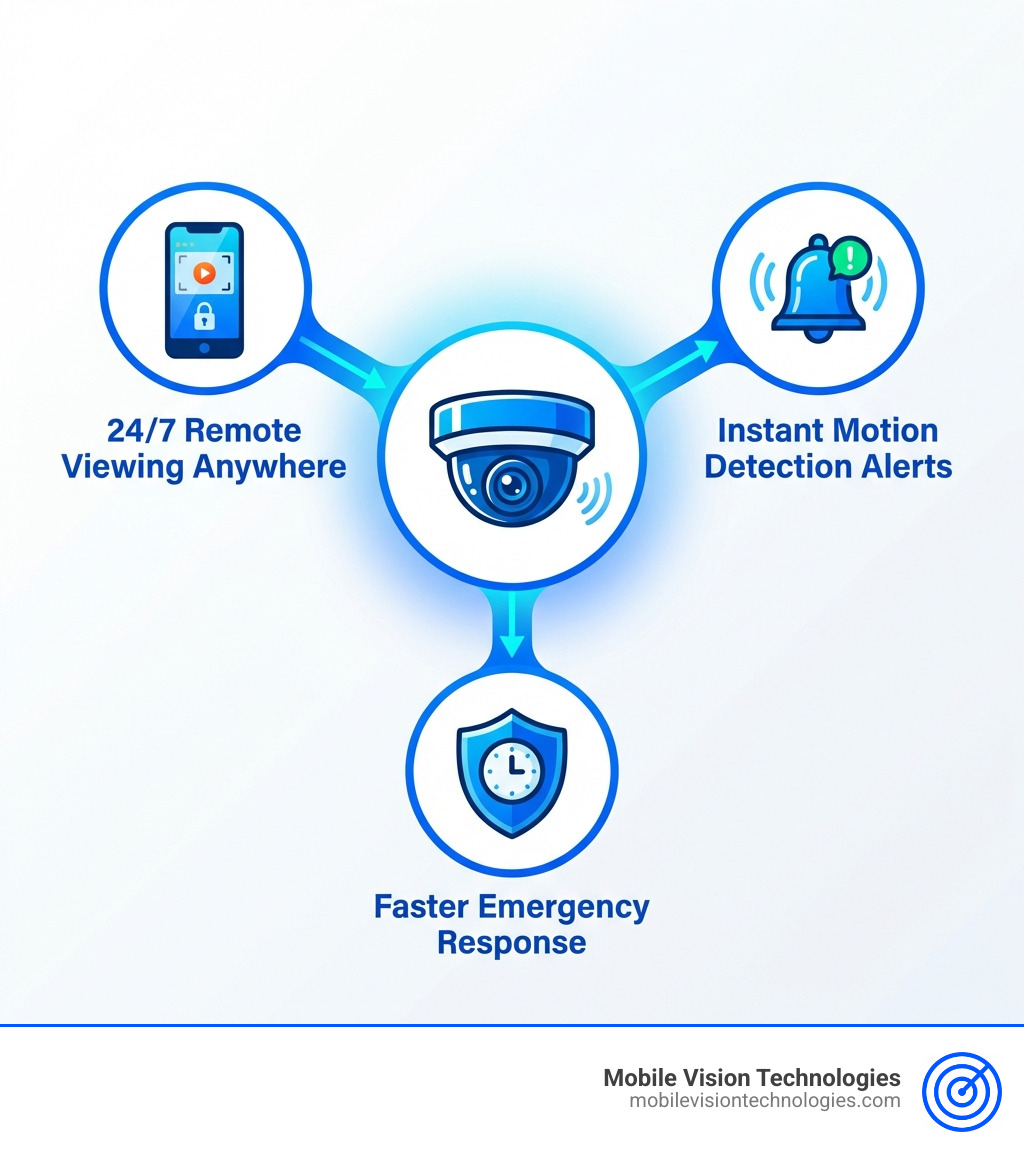
Modern CCTV to mobile connection delivers three core advantages:
- 24/7 remote viewing from any location with internet access
- Instant push notifications when motion or intrusions are detected
- Faster security response times by eliminating delays
I’m Chris Edens, and I specialize in mobile surveillance technology. This guide will show you how to establish a reliable cctv to mobile connection that puts security in your pocket, perfect for managing construction sites, warehouses, or multiple business locations.
Why Connect Your CCTV to a Mobile Phone? The Core Benefits
Connecting your CCTV to your mobile phone transforms static surveillance into a dynamic, responsive security tool. It gives you real-time access to your property in Memphis, Bartlett, Southaven, or anywhere else, whether you’re at work or on vacation.
The primary benefits of a cctv to mobile connection are clear:
-
Remote Accessibility: Check on your home or business with a few taps on your smartphone. With an internet connection, you can view live footage from anywhere in the world. This is perfect for monitoring your property while on vacation, checking the office after hours, or simply for peace of mind.
-
Real-Time Monitoring: Watching your property in real-time allows you to act fast if you notice anything unusual. This immediate awareness helps prevent security issues from escalating, letting you respond as situations unfold rather than just reviewing footage later.
-
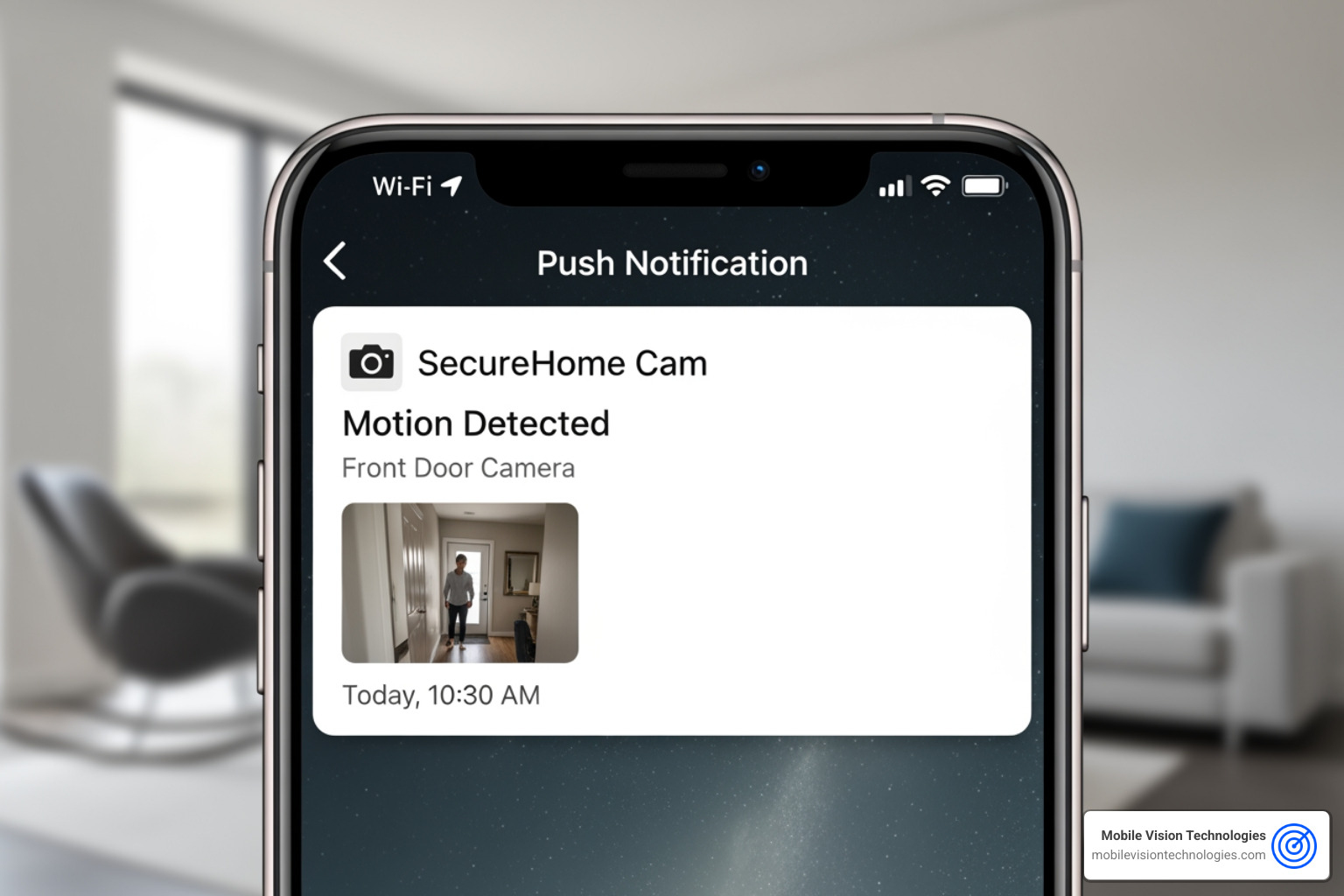
Proactive Security and Instant Alerts: Modern systems send push notifications for events like motion detection or intrusions. This allows for prompt responses, like checking the live feed or contacting authorities. Our AI-Powered Video Surveillance systems intelligently differentiate threats from normal activity, reducing false alarms.
-
Convenience: A dedicated app makes accessing your CCTV as simple as clicking a button. There’s no need for complex setups, making surveillance management more effective and keeping you aware.
Connecting your CCTV to your mobile device improves security and convenience, allowing easy access to live feeds for better surveillance management.
The Ultimate Guide to CCTV to Mobile Connection
Connecting your CCTV to your mobile phone is surprisingly straightforward with the right guidance. This guide walks you through the essential steps, from choosing a system to getting your live feed running on your smartphone.
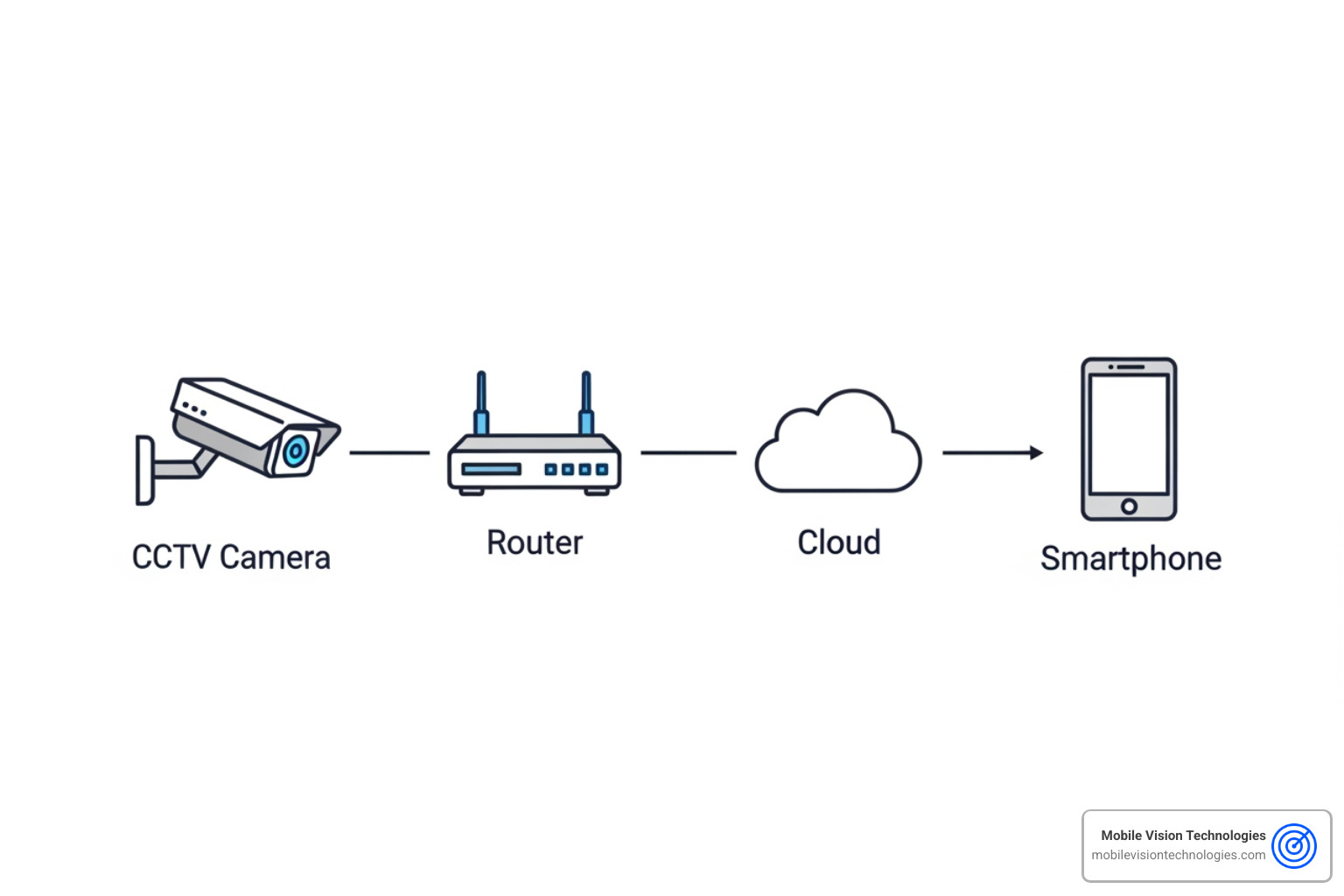
The journey to a seamless cctv to mobile connection involves understanding your system’s components and following a logical setup. The core principle is getting your camera’s video stream accessible over a network, then connecting your mobile device to that network via a dedicated app.
Step 1: Choosing a Compatible CCTV System
The type of CCTV system you have dictates how easily it connects to your smartphone.
-
IP Cameras: These digital cameras connect to your network (via Ethernet or Wi-Fi) and transmit video online. Most are designed for mobile viewing with dedicated apps, making them the easiest to connect.
-
NVR/DVR Systems:
- NVR (Network Video Recorder): An NVR records footage from IP cameras and typically includes remote viewing capabilities, letting you access all cameras through one mobile app.
- DVR (Digital Video Recorder): A DVR works with analog cameras, converting their signal to digital. Modern DVRs also offer network connectivity for remote mobile access.
-
Wi-Fi Cameras: A type of IP camera, these connect wirelessly to your Wi-Fi network. They offer flexible placement and simple setup for mobile viewing.
-
Cellular-Enabled Cameras: For locations without internet, like construction sites in Memphis or Southaven, cellular cameras are ideal. We specialize in these cameras, which use a SIM card and 4G/LTE data to transmit footage. They provide independent connectivity where Wi-Fi isn’t feasible.
Key Considerations for Mobile Viewing:
When evaluating your CCTV system, consider these factors:
- Mobile App Quality: A poor app can ruin a good camera. Research the app’s user-friendliness, update frequency, and features (live view, playback, notifications).
- Video Resolution: Higher resolution (1080p, 4K) offers clearer images but uses more bandwidth and storage. Balance detail with your internet capabilities.
- Storage Options: Does the system offer local storage (SD card, NVR/DVR) or cloud storage? Cloud storage is convenient for remote access to recordings.
- Connectivity Type: Ensure your system is compatible with your available internet connection (Wi-Fi, Ethernet, or cellular).
A system that supports mobile connectivity is crucial. Our robust Access Control Systems can integrate perfectly with your CCTV setup.
Step 2: Physical Installation and Network Setup
Next is physical installation and network setup. This foundation ensures your cameras can transmit footage effectively.
-
Strategic Camera Placement: Install cameras at strategic locations to cover entry points, assets, and blind spots. For a warehouse in Olive Branch, this means loading docks; for a home in Germantown, it means doors and windows.
-
Optimal Coverage Angles: Position cameras to capture critical areas while respecting privacy. Avoid pointing them at public property or neighbors.
-
Power Source Connection: Ensure each camera is connected to a reliable power source, whether through cables, batteries, or solar power.
-
Connecting to the Internet Router: An internet connection is essential for remote viewing with most systems.
- Ethernet Cable: For the most stable connection, connect your NVR/DVR or IP cameras directly to your router with an Ethernet cable.
- Wi-Fi Setup: For Wi-Fi cameras, connect them to your existing Wi-Fi network, ensuring a strong signal at all camera locations.
A stable network is the backbone of a reliable cctv to mobile connection. Our team offers comprehensive Installation, Maintenance & Monitoring services to ensure your system is perfectly optimized.
Step 3: Configuring the Mobile App for your CCTV to Mobile Connection
This is where you bring the CCTV feed to your phone. The process is usually streamlined, but knowing the steps helps.
-
Download the Official App: Find the recommended app from your camera manufacturer or provider (like us) on the iOS App Store or Google Play Store. Search for your camera or recorder’s brand name.
-
Create an Account: Most apps require you to create a user account with an email and a strong password. This will be your hub for managing your cameras.
-
Add Your Device: This is the core step. There are a few ways to add your system to the app:
- QR Code Scanning: The quickest method. Open the app, select “Add Device,” and scan the QR code on your camera or recorder.
- P2P (Peer-to-Peer) Setup: This simple method bypasses complex network configurations. You just need to enter a unique device ID (UID) or serial number into the app.
- Manual IP/Domain Entry: For advanced users, you can manually enter the camera’s IP address, port number, and login credentials.
-
Live Feed Monitoring: Once added, your cameras will appear in the app. Tap one to view the live feed and access features like:
- Live and multi-camera view
- Playback of recordings
- Motion detection settings
- Two-way audio
- Pan, Tilt, Zoom (PTZ) controls
- Snapshot and video recording to your phone
The goal is to make this process as seamless as possible, turning your mobile phone into your personal pocket watchman.
Securing and Troubleshooting Your Mobile Feed
A cctv to mobile connection is convenient but requires attention to security and troubleshooting. Your feed needs protection from unauthorized access, and technical glitches can happen.
How to Secure Your CCTV to Mobile Connection
Cybersecurity is paramount when accessing video footage remotely. Here are our best practices to keep your feed private and secure:
- Strong, Unique Passwords: This is your first line of defense. Use complex, unique passwords for your camera system, recorder, and mobile app. Avoid default passwords.
- Two-Factor Authentication (2FA): If your system or app offers 2FA, enable it. It adds an extra security layer by requiring a second verification code.
- Firmware Updates: Regularly update your camera and recorder firmware. Manufacturers release patches for security vulnerabilities, and outdated firmware is a common risk.
- Network Encryption (WPA2/WPA3): Ensure your Wi-Fi network uses strong encryption like WPA2 or WPA3 to protect data transmitted over your local network.
- Avoid Public Wi-Fi: Public networks are often insecure. Avoid viewing your feed on them unless you use a Virtual Private Network (VPN) for encryption.
- Camera Placement Awareness: Be mindful of camera placement to maintain security without compromising privacy. For more tips, check out these best practices for securing your wireless camera feed.
Common Troubleshooting Steps
If you encounter issues viewing your CCTV footage, here are common problems and their fixes:
-
No Video Feed / “Device Offline”:
- Check Internet Connection: The most common issue. Ensure both your CCTV system and phone have a stable internet connection.
- Router Status: Check your router’s lights to see if it’s online. A simple router reboot often resolves connectivity issues.
- Restart Camera/NVR/DVR: A quick restart of your camera or recording device can clear up temporary glitches.
- Power Cycle: Unplug the power from your equipment for 30 seconds, then plug it back in.
-
App Issues:
- App Updates: Keep your mobile app updated. Outdated versions can cause bugs or compatibility issues.
- Clear Cache/Reinstall: If the app is buggy, try clearing its cache in your phone’s settings or reinstalling it.
- Incorrect Login Credentials: Double-check your username and password in the app.
-
Network Configuration Problems:
- IP Address Changes: If you use a manual IP setup, your router’s external IP may have changed. A DDNS service can provide consistent access.
- Firewall Settings: Your router’s firewall might block the connection. Adjusting these settings is an advanced step we can handle during installation.
- Device Compatibility: Ensure your smartphone and its operating system are compatible with the CCTV app.
If you’ve tried these steps and still have issues, our team is ready to help. You can also Check our FAQs for more help on common issues.
Advanced Connectivity: Viewing CCTV in Remote or Challenging Locations
What if your property, like a construction site in Southaven or a remote cabin near Jackson, lacks a reliable internet connection? You can still achieve a cctv to mobile connection. We offer specialized solutions for these challenging environments.
Option 1: Using Cellular-Enabled Security Cameras from Mobile Vision Technologies
For locations without traditional internet, cellular-enabled cameras provide an independent and robust solution.
- SIM Card Enabled Cameras: These cameras use a SIM card to connect to a 4G/LTE network to transmit video, operating independently of a local Wi-Fi router.
- Independent Connectivity: The beauty of cellular cameras is their self-sufficiency. They can function entirely on their own, transmitting live feeds and alerts directly to your mobile phone.
- Data Plan Requirements: Cellular cameras require a data plan. Usage depends on video quality, frame rate, and viewing frequency. We can help you choose a plan that fits your needs (e.g., streaming 1080p video for two hours uses about 1 GB).
- Ideal Use Cases:
- Construction Sites: Our Construction Site Surveillance Systems often use cellular cameras to protect equipment without needing temporary internet.
- Warehouse Security: For large Warehouse Security Systems with spotty Wi-Fi, cellular cameras provide reliable coverage.
- Remote Properties: Farms or vacation homes in rural areas around Lakeland or Memphis can still benefit from real-time mobile surveillance.
These systems offer real-time monitoring and push notifications, ensuring you’re always aware, even in off-grid locations.
Option 2: Local Network Viewing (On-Site Access)
You can achieve a limited cctv to mobile connection for on-site viewing even without internet. This is for when you are physically at the location.
- Connect to the Same Local Wi-Fi: If your cameras and phone are on the same local Wi-Fi network (even one without internet), many apps allow direct viewing over the local area network (LAN).
- Direct Connection: Some IP cameras offer a direct Wi-Fi hotspot mode, allowing your phone to connect directly to the camera’s signal to view its feed.
- Limited Range: The major limitation is range. You must be within the Wi-Fi coverage area to access the feed. This is not a solution for remote viewing, but it’s effective for on-site monitoring.
- On-Site Viewing / LAN Access: This setup is useful for site managers or homeowners who want to check footage quickly while on the property without using mobile data. The camera still records locally (to an SD card or NVR/DVR), and your phone acts as a local monitor.
Frequently Asked Questions about CCTV to Mobile Connection
Here are answers to common questions about connecting your CCTV to your mobile phone.
Can all CCTV cameras be connected to a mobile phone?
No, not all. It depends on the type and age of your system.
- Modern IP Cameras: Most are designed for mobile access with built-in network capabilities and user-friendly apps.
- NVR/DVR Systems: Modern NVRs and DVRs almost always support mobile connectivity, acting as a hub to view all cameras through one app.
- Older Analog Systems: These may not support mobile viewing directly but can often be upgraded with a network-enabled DVR or an encoder.
Unsure about your system? Our experts at Mobile Vision Technologies can assess it and recommend the best upgrade path.
How much internet data does mobile CCTV viewing use?
Data consumption varies based on several factors:
- Video Quality: HD or 4K streaming uses more data than SD (e.g., an HD stream can use 1-2 GB per hour).
- Frame Rate: Higher frame rates (e.g., 30 fps) provide smoother video but use more data.
- Viewing Duration: The longer you watch a live feed, the more data you use.
- Number of Cameras: Viewing multiple feeds at once multiplies data consumption.
To minimize data usage, most apps let you switch between SD and HD quality and view recorded clips instead of live streaming.
Can I view multiple locations on one app?
Yes. A key advantage of a modern cctv to mobile connection is monitoring multiple properties from a single app.
This is beneficial for:
- Business Owners: Managing multiple stores or warehouses across Memphis, Bartlett, or Southaven.
- Property Managers: Overseeing various rental or commercial sites.
- Homeowners with Multiple Residences: Watching a primary home and a vacation property.
You can add multiple recorders or cameras from different locations to one account, providing centralized control and streamlining your security.
At Mobile Vision Technologies, we frequently implement robust Multi-Location Security Solutions for our clients, ensuring all their properties are accessible through one intuitive mobile interface.
Conclusion: Your Security, Now in Your Hands
Connecting your CCTV to your mobile phone is a fundamental part of modern security. It transforms passive surveillance into proactive protection with remote access, real-time alerts, and peace of mind. Whether monitoring your home or overseeing businesses in Memphis, Bartlett, or Jackson, a cctv to mobile connection puts you in control.
This guide covered the benefits, setup, security, and troubleshooting for your mobile feed. We also highlighted advanced solutions like our cellular-enabled cameras, ensuring even remote locations get intelligent surveillance.
The evolution of security technology, combining advanced IoT expertise with traditional surveillance methods, means that you no longer need to be physically present to protect what matters most. Your security is now truly in your hands, accessible anytime, anywhere. For advanced, intelligent solutions that combine IoT expertise with traditional security experience, consider Mobile Vision Technologies. We are dedicated to providing flexible, full-service protection custom to your specific needs. Explore our comprehensive Mobile Video Surveillance services today and take the first step towards a more secure future.